The vendor raised its overage rate on a Tuesday in April. Jess found out nine days later from a forum thread, by which point the new rate was already on her bill.
How to monitor a web page with an AI agent
Point the agent at a public page, pick daily or weekly, and get one message when the price or the status actually moves. Nothing at all for banners and timestamps.
Fasrad · September 17, 2026 · 4 min read
She's a developer in Denver shipping a product on top of a third-party messaging API, and she hasn't been surprised that way since. A Fasrad agent takes a snapshot of a page, fetches it again on a schedule, and messages her only when what changed actually matters. Setup is one sentence.
One sentence to start a monitor
Type the URL and the request. Jess wrote "Watch https://developer.wavecast.io/pricing and tell me when it changes."
That was the entire setup. Monitors default to a daily check, so add "weekly" to the sentence if once a week is enough. Up to 50 run per account.
Before anything gets saved, the agent loads the page once without cookies or a login and keeps that copy as the baseline. That first fetch doubles as the reachability test. You find out on the spot whether the page is one a monitor can read, because the agent says so in the same reply. A public pricing page passes.
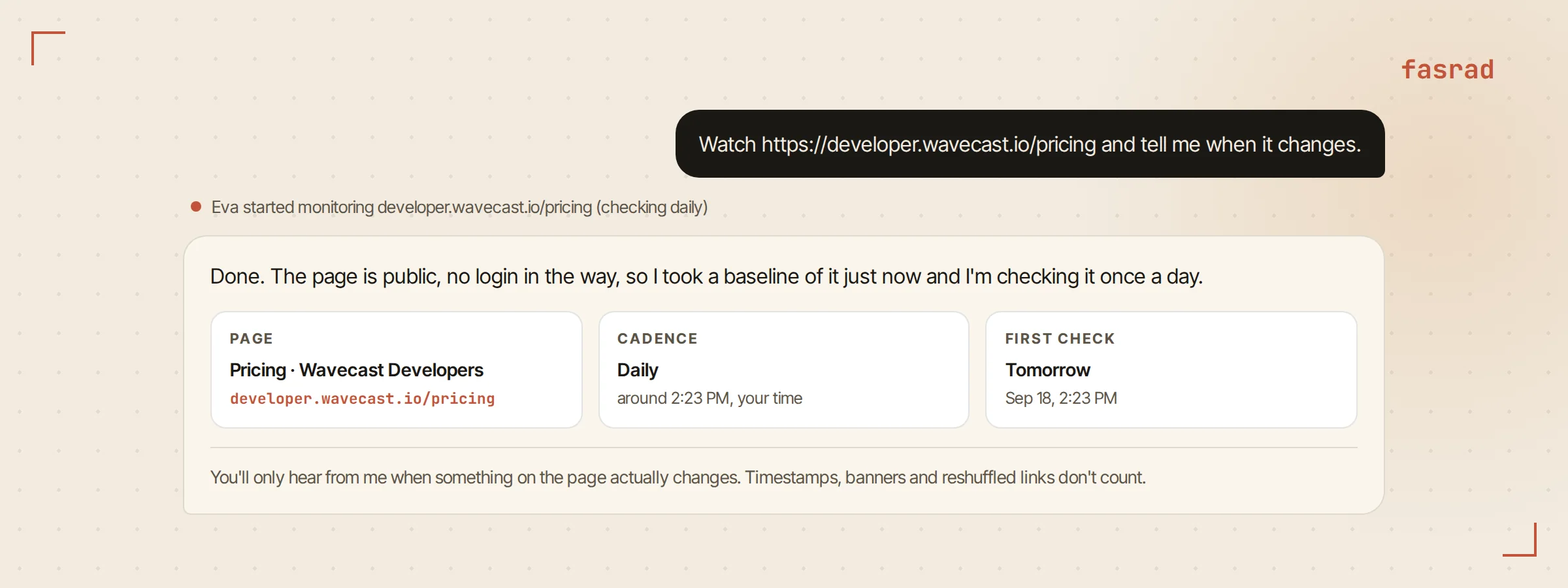
The confirmation names the cadence and the first check. That first check runs one full period after the baseline, so a daily monitor looks tomorrow and a weekly one looks in seven days. Each monitor gets its own minute of the day and keeps it, so a page is checked at the same time every time. This is what a developer agent points at every vendor a codebase depends on.
What actually counts as a change
Every check fetches the page fresh and strips out clock times, dates and whitespace before comparing the text against the last snapshot. Identical text ends the check there. Drift under a fixed floor is treated as noise, so a swapped ad slot never wakes anyone up. The silence isn't permanent, though. Drift is measured against the same baseline, so a slow accumulation of small edits eventually grows big enough to get looked at.
A bigger difference goes to a classifier that reads only the changed regions, with a few words of context around each one. Prices count as material, and so do availability, announcements, new versions, added or removed features, new posts and status changes. Timestamps don't. Neither do cookie banners, visit counters, reshuffled navigation or social-proof widgets. A cosmetic verdict quietly becomes the new baseline, so the same reshuffle never gets judged twice.
The classifier's job isn't a yes or a no. It has to describe what changed, before against now, naming the values it can see. It may cover up to 3 distinct changes in one summary. Every message you get names what moved.
Reading the message when it lands
A material change arrives as an ordinary message from the agent, in the chat or on Telegram if that's where the agent reaches you. It opens with the change itself. Bold line, then the numbers.
There's no preamble and no status report. The summary was extracted during the check, so the agent's only job by then is to phrase it and link the page.
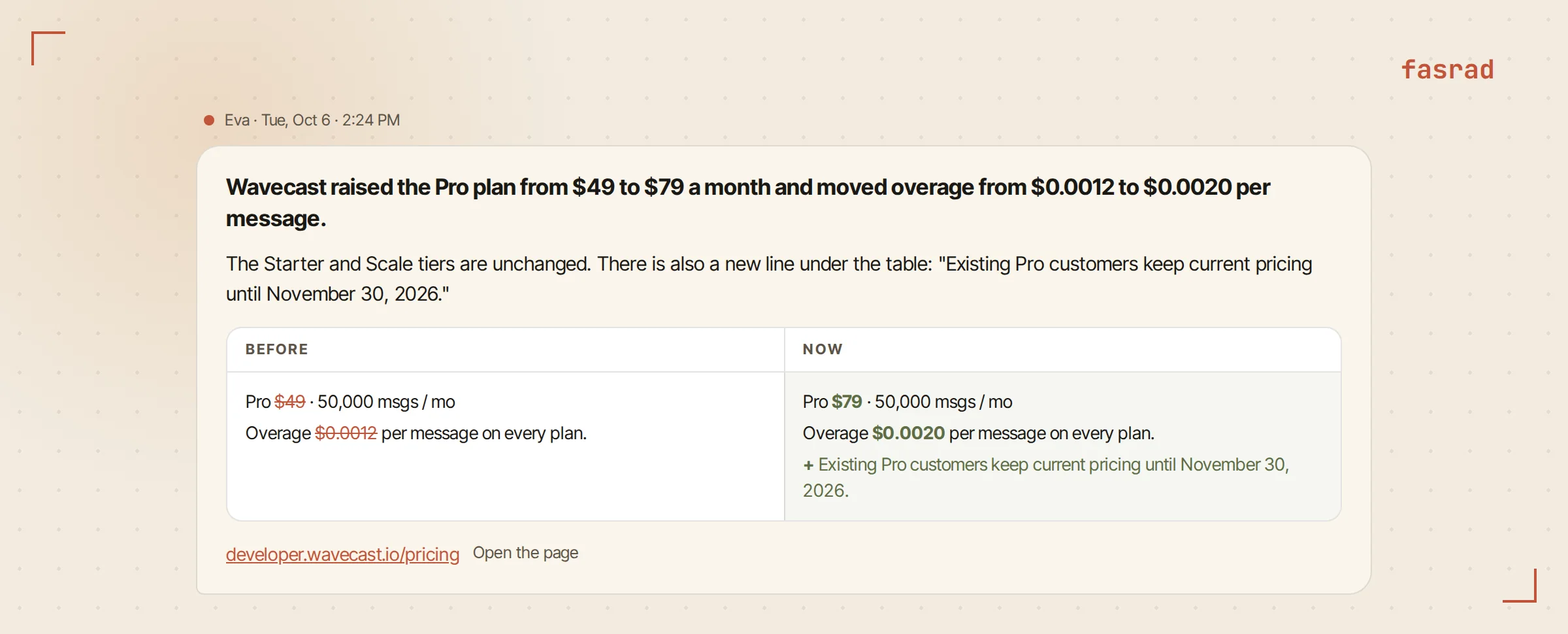
For Jess the bold line said the Pro plan had moved from $49 to $79 a month, with the old and new overage rates underneath it. She opened the page, read the grandfathering clause, and had the budget conversation that afternoon instead of after the invoice. The same shape works for a competitive intelligence agent watching a rival's plans page.
Adding pages straight from the browser
Her second and third monitors never went through the chat. She installed the Scanner extension for Chrome and Firefox, opened the competitor's pricing page, and clicked the Task tab. Under "What Eva can do on this page" the first suggestion read "Monitor this page for changes, check daily", with the cadence as a dropdown.
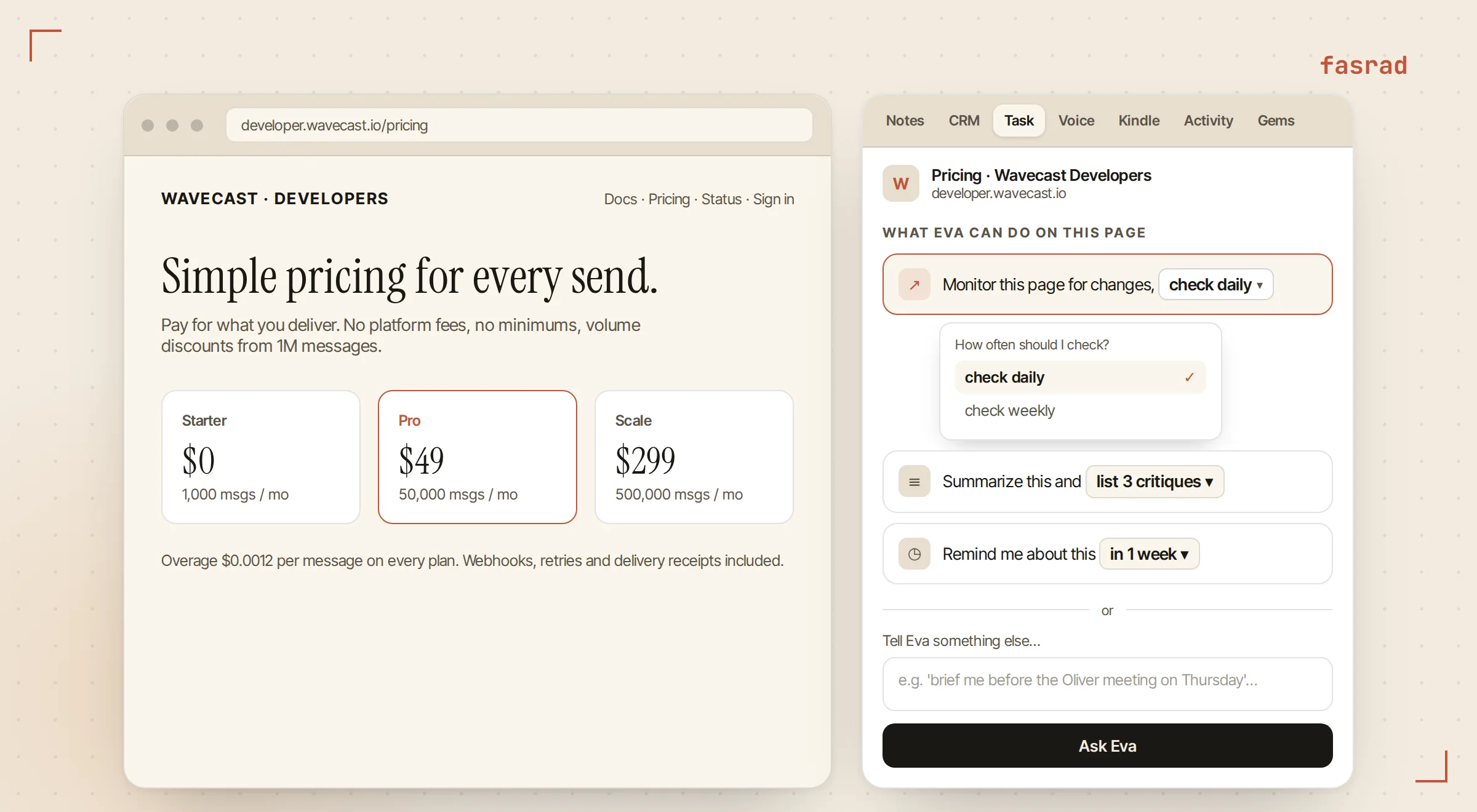
One click, same monitor.
It gets created exactly the way the chat creates it, with the same public-page check and the same baseline. She put the competitor on weekly, since their prices move slowly, and left the vendor's status page on daily.
The suggestion doesn't appear on social feeds. A page that changes on every load would make the whole thing meaningless.
Asking what it is watching
"What are you watching for me?" returns the list: each page, its cadence, and when the next check runs. The same list lives on the Work page under schedules, where every monitor is a card titled with the page name. A run that found a change keeps its message on the card, and a run that found nothing says so.
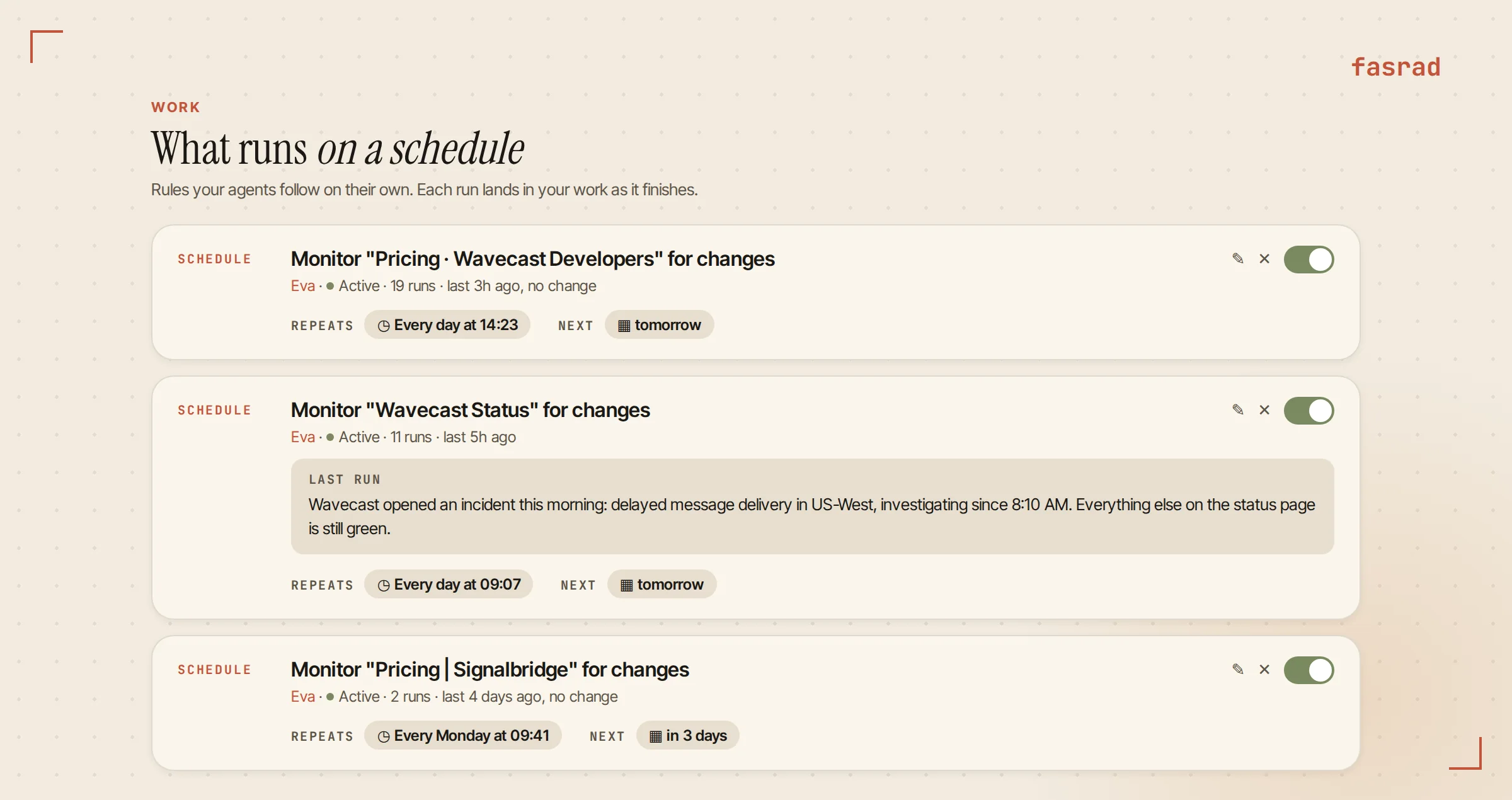
Every card carries a pause toggle, and the changes a monitor finds also collect in the Work feed under Monitors, so one page's history sits in one place. A brand monitoring agent runs on exactly this machinery, pointed at press pages rather than an API vendor.
Ending one when the project ends
When Jess moved off the competitor's platform for good she typed "Stop watching the Signalbridge pricing page." The agent matches the page by URL or by its number in the list and ends it.
The snapshots stay. An old change is still findable, and nothing fetches the page again. Pausing from the Work page does the same thing temporarily.
A page can only be watched once, and 50 monitors is the ceiling. A compliance monitor built this way sits on a handful of regulator pages the same way Jess sits on her vendor.
Frequently asked questions
How often does the agent check a page?
Daily or weekly. Each monitor gets a fixed time of day, so a daily monitor checks at the same time every day and a weekly one on the same weekday. The first check runs one full period after the baseline.
Can it watch a page behind a login?
Monitors read a page the way a first-time visitor does, without cookies or a sign-in, so any publicly reachable page works. The agent checks reachability the moment you create the monitor and tells you there and then, before a baseline is saved.
Will I get a message every time the page changes at all?
No. Identical text and tiny drift end the check silently. Larger differences are judged by a classifier that treats prices, availability, announcements, new content and status changes as material and treats timestamps, banners, ad slots and navigation reshuffles as cosmetic. Only material changes become a message.
What does the change message look like?
It leads with what changed, before versus now, naming the values the agent saw, and it links the page. If several things changed it covers up to three, most important first. There is no preamble and no status report.
Where can I see all my monitors?
Ask the agent what it is watching for you, or open the Work page and its schedules. Each monitor is a card with the page name, the repeat rule, the next check, the run count and the last change it found. Changes also appear in the Work feed under Monitors.
Can I add a monitor without opening the chat?
Yes. With the Scanner browser extension open on the page, the Task tab suggests Monitor this page for changes with a daily or weekly cadence. One click creates the monitor with the same public-page check the chat uses.
How do I stop one?
Tell the agent to stop watching the page, by URL or by its number from the list, or pause it from its card on the Work page. Up to fifty monitors can run per account, and the same page cannot be watched twice.